Angular applications are usually built as single-page applications (SPAs), where navigating between pages does not require the browser to reload the entire application. Instead, Angular uses its built-in Router to display different components based on the current URL.
In this tutorial, we will learn how to implement routing and navigation in Angular 22 using the modern standalone application architecture. We will start with basic routes and navigation, then move on to route parameters, query parameters, nested routes, redirects, lazy-loaded components, route guards, resolvers, and route transition animations.
Angular 22 uses standalone components by default, so this tutorial does not use the older AppModule or AppRoutingModule approach. Routes are defined in app.routes.ts and registered using provideRouter() in the application configuration.
By the end of this tutorial, you will have a solid understanding of Angular routing and be able to build applications with multiple navigable views without full-page browser reloads.
What You Will Learn
In this tutorial, you will learn how to:
-
Configure routing in an Angular 22 application.
-
Define routes using
RoutesandprovideRouter(). -
Display routed components using
RouterOutlet. -
Navigate between routes using
RouterLink. -
Highlight the currently active navigation link.
-
Navigate programmatically using the
Routerservice. -
Work with route parameters.
-
Work with query parameters.
-
Bind route parameters directly to component inputs.
-
Configure route titles and route data.
-
Create redirects and wildcard routes.
-
Build nested and child routes.
-
Lazy-load standalone components.
-
Protect routes with route guards.
-
Load data before activating a route with resolvers.
-
Add route transition animations using modern browser APIs.
The examples throughout this tutorial use the standalone Angular architecture recommended for modern Angular applications.
Prerequisites
Before starting this tutorial, you should have a basic understanding of Angular and TypeScript. You should also be familiar with creating and running an Angular application from the command line.
Make sure the following tools are installed on your development machine.
Node.js
Angular 22 requires a supported version of Node.js. You can check your installed version with:
node --version
You should use a Node.js version supported by Angular 22. Check the Angular version compatibility page if you need to verify the currently supported Node.js versions.
npm
npm is installed automatically with Node.js. Check your version with:
npm --version
Angular CLI
You also need the Angular CLI to create and run the project. You can check whether it is already installed with:
ng version
If you do not have the Angular CLI installed, install it globally with:
npm install -g @angular/cli
Then verify the installation:
ng version
The output should show Angular CLI 22.x.
Code Editor
You can use any code editor you prefer. Visual Studio Code is a popular choice and provides excellent TypeScript and Angular support.
Basic Angular Knowledge
You should have a basic understanding of the following Angular concepts:
-
Components
-
Templates
-
TypeScript
-
Standalone components
-
Angular CLI
-
Angular services
-
Signals and modern Angular template syntax
You do not need previous experience with Angular Router because we will build the routing configuration step by step throughout this tutorial.
Create an Angular 22 Application
Before configuring routing, let's create a new Angular 22 application. The Angular CLI generates a standalone application by default, so we don't need to create an AppModule or a separate AppRoutingModule.
Open a terminal and run the following command:
ng new angular-routing
When prompted by the Angular CLI, you can use the following options:
Which stylesheet format would you like to use? CSS
Do you want to enable Server-Side Rendering (SSR) and Static Site Generation (SSG/Prerendering)? No
Do you want to create a 'zoneless' application without ZoneJS? Yes
For this tutorial, we will use CSS and a client-side Angular application. The routing concepts are the same whether an application uses SSR or SSG.
Note: The exact prompts displayed by the Angular CLI can change between Angular releases. If an option is not shown in your version, accept the CLI's default.
Move into the project directory:
cd angular-routing
Install the project dependencies if they have not already been installed:
npm install
Then start the Angular development server:
ng serve
Open the URL displayed by the CLI, normally:
http://localhost:4200/
You should see the default Angular application in your browser.
Understanding the Project Structure
The Angular CLI creates a standalone application with a structure similar to this:
angular-routing/
├── src/
│   ├── app/
│   │   ├── app.config.ts
│   │   ├── app.html
│   │   ├── app.routes.ts
│   │   ├── app.ts
│   │   └── ...
│   ├── main.ts
│   ├── index.html
│   └── styles.css
├── angular.json
├── package.json
├── tsconfig.json
└── ...
The files that are particularly important for routing are app.routes.ts and app.config.ts.
The app.routes.ts file contains the application's route definitions. A newly generated application can contain an empty route configuration similar to:
import { Routes } from '@angular/router';

export const routes: Routes = [];
The app.config.ts file contains the application's providers. The router is registered here using provideRouter():
import { ApplicationConfig, provideBrowserGlobalErrorListeners } from '@angular/core';
import { provideRouter } from '@angular/router';
import { routes } from './app.routes';

export const appConfig: ApplicationConfig = {
  providers: [
    provideBrowserGlobalErrorListeners(),
    provideRouter(routes)
  ]
};
The main.ts file bootstraps the root component using this application configuration:
import { bootstrapApplication } from '@angular/platform-browser';

import { appConfig } from './app/app.config';
import { App } from './app/app';

bootstrapApplication(App, appConfig)
  .catch((err) => console.error(err));
The important difference from older Angular applications is that there is no AppModule involved. The application is bootstrapped directly with bootstrapApplication(), while the router is configured through provideRouter().
In the next section, we will create a few standalone components and configure our first Angular routes.
Configure Basic Routes
Angular Router maps URL paths to components. When the URL changes, the router determines which component should be displayed.
For our first example, we will create three pages:
-
Home
-
About
-
Contact
Create the Components
Open a new terminal in the project directory and generate the three standalone components:
ng generate component home
ng generate component about
ng generate component contact
The Angular CLI generates standalone components by default.
The project structure should now include:
src/
└── app/
    ├── about/
    │   ├── about.ts
    │   ├── about.html
    │   └── ...
    ├── contact/
    │   ├── contact.ts
    │   ├── contact.html
    │   └── ...
    ├── home/
    │   ├── home.ts
    │   ├── home.html
    │   └── ...
    ├── app.config.ts
    ├── app.routes.ts
    └── app.ts
You can simplify the templates so that each page clearly identifies itself.
For home.html:
<h2>Home</h2>
<p>Welcome to the Angular 22 routing tutorial.</p>
For about.html:
<h2>About</h2>
<p>This is the About page.</p>
For contact.html:
<h2>Contact</h2>
<p>This is the Contact page.</p>
Define the Routes
Open src/app/app.routes.ts and replace its contents with the following:
import { Routes } from '@angular/router';

import { Home } from './home/home';
import { About } from './about/about';
import { Contact } from './contact/contact';

export const routes: Routes = [
  {
    path: '',
    component: Home,
    title: 'Home'
  },
  {
    path: 'about',
    component: About,
    title: 'About'
  },
  {
    path: 'contact',
    component: Contact,
    title: 'Contact'
  }
];
The Routes type represents an array of route configurations.
Each route contains a path and a component. For example:
{
  path: 'about',
  component: About
}
This tells Angular to display the About component when the browser URL contains /about.
We have also added a title to each route. Angular Router can use this value to update the browser document title when the route becomes active.
The empty path:
{
  path: '',
  component: Home,
  title: 'Home'
}
represents the application's root URL:
http://localhost:4200/
The other routes correspond to:
http://localhost:4200/about
http://localhost:4200/contact
Make Sure the Router Is Registered
Because the Angular CLI created a standalone application, the routes are registered in app.config.ts with provideRouter():
import { ApplicationConfig } from '@angular/core';
import { provideRouter } from '@angular/router';

import { routes } from './app.routes';

export const appConfig: ApplicationConfig = {
  providers: [
    provideRouter(routes)
  ]
};
If your project already contains this configuration, you don't need to add it again.
Display the Routed Component
Defining routes is not enough by itself. Angular needs a location in the application template where it can render the component associated with the current URL.
Open src/app/app.ts and import RouterOutlet:
import { Component } from '@angular/core';
import { RouterOutlet } from '@angular/router';

@Component({
  selector: 'app-root',
  imports: [RouterOutlet],
  templateUrl: './app.html'
})
export class App {}
Then open src/app/app.html and add:
<h1>Angular 22 Routing</h1>

<router-outlet />
RouterOutlet is a directive that acts as a placeholder for the component associated with the active route.
Now start the application:
ng serve
Visit the following URLs in your browser:
http://localhost:4200/
http://localhost:4200/about
http://localhost:4200/contact
Angular should display a different component for each URL.
At this point, routing works, but users have to manually enter URLs in the browser. In the next section, we will add navigation links using Angular's RouterLink directive.
Navigate Between Routes with RouterLink
In the previous section, we configured basic routes for the Home, About, and Contact pages. However, users still need to enter the URLs manually to navigate between these pages.
Angular provides the RouterLink directive to create navigation links. Unlike a regular HTML anchor that may trigger a full-page reload, RouterLink works with Angular Router to navigate between routes without reloading the entire application.
Import RouterLink
Open src/app/app.ts and import RouterLink alongside RouterOutlet:
import { Component } from '@angular/core';
import { RouterLink, RouterOutlet } from '@angular/router';

@Component({
  selector: 'app-root',
  imports: [RouterLink, RouterOutlet],
  templateUrl: './app.html'
})
export class App {}
Because App is a standalone component, we must include the directives used in its template in the imports array.
Add Navigation Links
Open src/app/app.html and replace its contents with the following code:
<h1>Angular 22 Routing</h1>

<nav>
  <a routerLink="/">Home</a>
  <a routerLink="/about">About</a>
  <a routerLink="/contact">Contact</a>
</nav>

<hr />

<router-outlet />
The routerLink directive connects each anchor to a route defined in app.routes.ts.
For example:
<a routerLink="/about">About</a>When a user clicks this link, Angular navigates to the /about route and renders the About component inside <router-outlet />.
The other links navigate to the Home and Contact pages.
Add Basic Navigation Styling
To make the navigation easier to use, open src/styles.css and add the following styles:
body {
  font-family: Arial, sans-serif;
  margin: 0;
  padding: 24px;
}

nav {
  display: flex;
  gap: 20px;
  margin: 20px 0;
}

nav a {
  color: #1976d2;
  text-decoration: none;
  font-weight: 500;
}

nav a:hover {
  text-decoration: underline;
}
Test the Navigation
Run the development server if it is not already running:
ng serveOpen http://localhost:4200/ in your browser and click the Home, About, and Contact links.
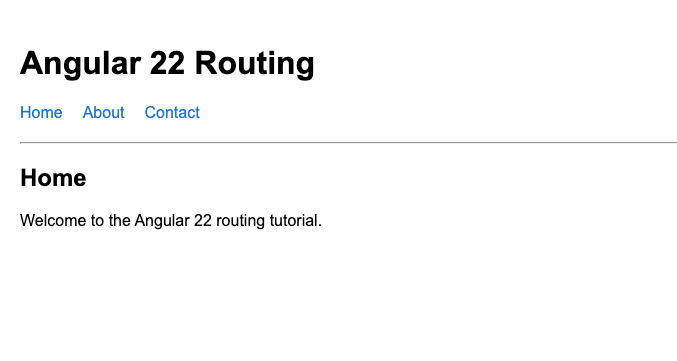
You should see the URL change and the corresponding component appear without a full-page reload.
Important: RouterLink only works when the Angular Router is configured and the relevant directive is imported into the component using it.
Highlight Active Links with RouterLinkActive
When an application has multiple pages, users should be able to identify which page they are currently viewing. Angular provides the RouterLinkActive directive to apply CSS classes to navigation links when their associated routes are active.
In this section, we will highlight the active navigation link in our Angular 22 application.
Import RouterLinkActive
Open src/app/app.ts and import RouterLinkActive from @angular/router. Add it to the component's imports array alongside RouterLink and RouterOutlet.
import { Component } from '@angular/core';
import {
  RouterLink,
  RouterLinkActive,
  RouterOutlet
} from '@angular/router';

@Component({
  selector: 'app-root',
  imports: [
    RouterLink,
    RouterLinkActive,
    RouterOutlet
  ],
  templateUrl: './app.html'
})
export class App {}
Apply RouterLinkActive to Navigation Links
Open src/app/app.html and update the navigation section:
<h1>Angular 22 Routing</h1>

<nav>
  <a
    routerLink="/"
    routerLinkActive="active"
    [routerLinkActiveOptions]="{ exact: true }"
    ariaCurrentWhenActive="page">
    Home
  </a>

  <a
    routerLink="/about"
    routerLinkActive="active"
    ariaCurrentWhenActive="page">
    About
  </a>

  <a
    routerLink="/contact"
    routerLinkActive="active"
    ariaCurrentWhenActive="page">
    Contact
  </a>
</nav>

<hr />

<router-outlet />
Let's examine the important attributes.
-
routerLinkActive="active"applies the CSS classactivewhen the associated route is active. -
[routerLinkActiveOptions]="{ exact: true }"requires an exact URL match for the Home link. This prevents the root route from being treated as active on every other page. -
ariaCurrentWhenActive="page"setsaria-current="page"on the active link, helping assistive technologies identify the current page.
Style the Active Link
Add the following CSS to src/styles.css:
nav {
  display: flex;
  gap: 20px;
  margin: 20px 0;
}

nav a {
  color: #1976d2;
  text-decoration: none;
  padding: 8px 12px;
  border-radius: 4px;
}

nav a:hover {
  background-color: #f0f4f8;
}

nav a.active {
  color: white;
  background-color: #1976d2;
  font-weight: bold;
}
Test the Active Navigation
Start the development server if necessary:
ng serveVisit the following URLs and observe the active link:
|
URL |
Active link |
|---|---|
|
|
Home |
|
|
About |
|
|
Contact |
The active link should have a blue background and white text. When you navigate to another page, Angular automatically updates the active class.
Tip: RouterLinkActive can also apply multiple CSS classes, such as routerLinkActive="active highlighted". For more complex navigation menus, it can be placed on a parent element to reflect the active state of its descendant links.
Navigate Programmatically with Angular Router
In the previous sections, we used RouterLink to navigate between pages through links. However, some applications need to navigate after a user acts, such as submitting a form, completing a login, or clicking a button.
Angular provides the Router service for programmatic navigation. Its navigate() and navigateByUrl() methods let us change the current route from a component's TypeScript code.
Import the Router Service
For this example, we will add a button to the Home page that navigates to the About page.
Open src/app/home/home.ts and update the component:
import { Component, inject } from '@angular/core';
import { Router } from '@angular/router';

@Component({
  selector: 'app-home',
  templateUrl: './home.html'
})
export class Home {
  private readonly router = inject(Router);

  goToAbout(): void {
    this.router.navigate(['/about']);
  }
}
Here, we use Angular's inject() function to obtain an instance of Router.
The goToAbout() method calls navigate() with an array containing the destination path. Angular then navigates to /about without performing a full-page reload.
Add a Navigation Button
Open src/app/home/home.html and add the button:
<h2>Home</h2>

<p>Welcome to the Angular 22 routing tutorial.</p>

<button type="button" (click)="goToAbout()">
  Go to About
</button>
The (click) event binding calls goToAbout() when the user clicks the button.
Run the application with ng serve, visit the Home page, and click Go to About. The browser URL should change to /about, and Angular should display the About component.
Navigate with navigateByUrl()
Angular also provides navigateByUrl() when you already have the destination URL as a string.
For example, you could add another method to the Home component:
goToContact(): void {
  this.router.navigateByUrl('/contact');
}
Then add a button to home.html:
<button type="button" (click)="goToContact()">
  Go to Contact
</button>
Both methods perform client-side navigation, but they accept different inputs:
|
Method |
Input |
Example |
|---|---|---|
|
|
An array of URL segments and navigation commands |
|
|
|
A URL string or |
|
Use navigate() when you need to construct a URL from segments or commands. Use navigateByUrl() when you already have the destination URL.
Pass Query Parameters During Navigation
Programmatic navigation can also include query parameters. For example, update the Home component with this method:
goToAboutWithQuery(): void {
  this.router.navigate(['/about'], {
    queryParams: {
      source: 'home',
      version: 22
    }
  });
}
This navigates to:
/about?source=home&version=22Query parameters are useful for search terms, filters, pagination, and other optional URL state. In the next sections, we will explore route parameters and query parameters in more detail.
Work with Route Parameters in Angular 22
Route parameters allow you to pass dynamic values through a URL. They are useful when building applications that display product details, user profiles, blog posts, or other content identified by an ID or slug.
For example, an application might use URLs like these:
/products/101
/products/102
/products/103
Instead of creating a separate component for every product, we can define one route that accepts a dynamic parameter and displays the appropriate product.
Create a Product Details Component
First, generate a standalone component for displaying product details:
ng generate component product-detailsOpen src/app/app.routes.ts and import the generated component:
import { Routes } from '@angular/router';

import { Home } from './home/home';
import { About } from './about/about';
import { Contact } from './contact/contact';
import { ProductDetails } from './product-details/product-details';

export const routes: Routes = [
  {
    path: '',
    component: Home,
    title: 'Home'
  },
  {
    path: 'about',
    component: About,
    title: 'About'
  },
  {
    path: 'contact',
    component: Contact,
    title: 'Contact'
  },
  {
    path: 'products/:id',
    component: ProductDetails,
    title: 'Product Details'
  }
];
The important part is products/:id. The colon indicates that id is a dynamic route parameter.
For example, navigating to /products/101 sets the id parameter to 101.
Read Route Parameters with ActivatedRoute
Angular provides the ActivatedRoute service to access information about the currently active route, including its parameters.
Open src/app/product-details/product-details.ts and add the following code:
import { Component, inject } from '@angular/core';
import { ActivatedRoute } from '@angular/router';

@Component({
  selector: 'app-product-details',
  templateUrl: './product-details.html'
})
export class ProductDetails {
  private readonly route = inject(ActivatedRoute);

  productId = this.route.snapshot.paramMap.get('id');
}
Here, inject(ActivatedRoute) retrieves the active route, while snapshot.paramMap.get('id') reads the value of the id parameter when the component is initialized.
The productId property will contain a string, such as "101", or null if the parameter is missing.
Display the Route Parameter
Open src/app/product-details/product-details.html and add:
<h2>Product Details</h2>

<p>Product ID: {{ productId }}</p>
Now start the development server:
ng serveOpen the following URL in your browser:
http://localhost:4200/products/101You should see:
Product Details

Product ID: 101
Try changing the URL to /products/102. The component will display the corresponding ID.
Navigate to Product Details Using RouterLink
You can also generate links to individual products. For example, add the following code to src/app/home/home.html:
<h2>Home</h2>

<p>Welcome to the Angular 22 routing tutorial.</p>

<h3>Products</h3>

<ul>
  <li><a routerLink="/products/101">Product 101</a></li>
  <li><a routerLink="/products/102">Product 102</a></li>
  <li><a routerLink="/products/103">Product 103</a></li>
</ul>
The Home component must import RouterLink. Update src/app/home/home.ts to include it:
import { Component, inject } from '@angular/core';
import { Router, RouterLink } from '@angular/router';

@Component({
  selector: 'app-home',
  imports: [RouterLink],
  templateUrl: './home.html'
})
export class Home {
  private readonly router = inject(Router);

  goToAbout(): void {
    this.router.navigate(['/about']);
  }

  goToContact(): void {
    this.router.navigateByUrl('/contact');
  }

  goToAboutWithQuery(): void {
    this.router.navigate(['/about'], {
      queryParams: {
        source: 'home',
        version: 22
      }
    });
  }
}
This preserves the programmatic navigation examples from the previous section while enabling the new product links.
Snapshot Versus Reactive Route Parameters
The example above uses snapshot.paramMap, which is suitable when you only need the parameter value at the time the component is created.
However, Angular can reuse a component when navigating between URLs that match the same route configuration. For example, moving from /products/101 to /products/102 may reuse the same component instance.
If you need to respond to parameter changes while the component remains active, use the observable paramMap or bind the route parameter directly to a component input with withComponentInputBinding(). We will explore the modern input-binding approach in a later section.
Route parameters are best suited for required values that identify a resource, such as a product ID or article slug. For optional state such as search filters and pagination, query parameters are often a better choice.
Work with Query Parameters in Angular 22
Query parameters allow you to pass optional information through a URL without defining additional route segments. They are commonly used for search terms, filtering, sorting, pagination, and preserving UI state.
For example, consider the following URL:
/products?category=electronics&page=2In this URL, category and page are query parameters. Unlike route parameters such as /products/:id, query parameters appear after the question mark (?) and are separated by ampersands (&).
In this section, we will learn how to read query parameters, generate navigation links with them, and update them programmatically.
Read Query Parameters with ActivatedRoute
We will use the existing About component to demonstrate how query parameters work.
Open src/app/about/about.ts and update the component:
import { Component, inject } from '@angular/core';
import { ActivatedRoute } from '@angular/router';

@Component({
  selector: 'app-about',
  templateUrl: './about.html'
})
export class About {
  private readonly route = inject(ActivatedRoute);

  source = this.route.snapshot.queryParamMap.get('source');
  version = this.route.snapshot.queryParamMap.get('version');
}
The ActivatedRoute service provides access to the current route's query parameters through snapshot.queryParamMap.
The get() method returns the requested parameter as a string or null if it does not exist.
Next, open src/app/about/about.html and display the values:
<h2>About</h2>

<p>This is the About page.</p>

<p>Navigation source: {{ source ?? 'Not specified' }}</p>
<p>Angular version: {{ version ?? 'Not specified' }}</p>
Now open this URL in your browser:
http://localhost:4200/about?source=home&version=22The page should display the following values:
Navigation source: home
Angular version: 22
You can change the query parameter values directly in the URL to test different results.
Note: This example uses a route snapshot, so the values are read when the component is created. If query parameters change while the same component remains active, use the observable queryParamMap or Angular's component input binding, which we will cover later.
Create Navigation Links with Query Parameters
Angular's RouterLink directive supports query parameters through the queryParams input.
Open src/app/home/home.html and add a link to the About page:
<h2>Home</h2>

<p>Welcome to the Angular 22 routing tutorial.</p>

<a
  routerLink="/about"
  [queryParams]="{
    source: 'home',
    version: 22
  }">
  About with Query Parameters
</a>
When clicked, this link navigates to:
/about?source=home&version=22The queryParams object defines the values Angular adds to the URL. Angular handles URL encoding when necessary.
Navigate Programmatically with Query Parameters
You can also pass query parameters through the Router service.
For example, add the following method to src/app/home/home.ts:
goToAboutWithQuery(): void {
  this.router.navigate(['/about'], {
    queryParams: {
      source: 'home',
      version: 22
    }
  });
}
Then add a button to src/app/home/home.html:
<button
  type="button"
  (click)="goToAboutWithQuery()">
  Navigate with Query Parameters
</button>
When the user clicks the button, Angular navigates to the About page and appends the specified query parameters.
This approach is useful when navigation depends on an application event, such as submitting a search form or selecting a filter.
Preserve Existing Query Parameters
Sometimes, you want to update a query parameter without removing the others.
For example, an application might already have this URL:
/products?category=electronics&page=2You can preserve the existing query parameters while adding or updating another value:
goToNextPage(): void {
  this.router.navigate(['/products'], {
    queryParams: {
      page: 3
    },
    queryParamsHandling: 'merge'
  });
}
With queryParamsHandling: 'merge', Angular merges the new parameters with the existing query parameters. In this example, category=electronics is preserved while page changes to 3.
The merge option is particularly useful for filter controls, pagination, and search interfaces.
Route Parameters vs. Query Parameters
Both mechanisms pass information through the URL, but they serve different purposes.
| Feature | Route parameters | Query parameters |
|---|---|---|
| Example | /products/101 |
/products?page=2 |
| Typical purpose | Identify a specific resource | Represent optional state |
| Defined in route path | Yes | No |
| Access API | paramMap |
queryParamMap |
| Can be omitted from URL | Usually not for a required route segment | Yes |
Use route parameters when a value identifies the resource being displayed. Use query parameters when a value represents optional settings or state that users may want to share or bookmark.
In the next section, we will explore binding route parameters and query parameters directly to component inputs using Angular's withComponentInputBinding() feature.
Demonstrate Reactive Query Parameter Changes
Using ActivatedRoute.snapshot.queryParamMap reads query parameters only once. If the URL changes while Angular reuses the same component, the values stored from the snapshot will not automatically update.
To handle query parameter changes reactively, we can subscribe to ActivatedRoute.queryParamMap.
For example, consider a product listing page with a category filter and a page number in the URL:
/products?category=electronics&page=1When the user changes the page number or category, the component should update automatically.
Update the Product Component
Open src/app/product-details/product-details.ts and replace its contents with the following example. For this demonstration, we will use the existing component to show how reactive query parameters work.
import { Component, inject } from '@angular/core';
import { ActivatedRoute } from '@angular/router';

@Component({
  selector: 'app-product-details',
  templateUrl: './product-details.html'
})
export class ProductDetails {
  private readonly route = inject(ActivatedRoute);

  category = '';
  page = 1;

  constructor() {
    this.route.queryParamMap.subscribe(params => {
      this.category = params.get('category') ?? 'all';
      this.page = Number(params.get('page') ?? 1);
    });
  }
}
The queryParamMap observable emits a new value whenever the query parameters change. The subscription updates the category and page properties accordingly.
Display the Reactive Values
Open src/app/product-details/product-details.html and add:
<h2>Product Listing</h2>

<p>Category: {{ category }}</p>
<p>Page: {{ page }}</p>
Now navigate to:
/products?category=electronics&page=1The page should display:
Category: electronics
Page: 1
Change the URL to:
/products?category=books&page=2The component should update to show the new category and page number without requiring a full-page reload.
Test Changes Through Router Navigation
You can also update the query parameters using the Router service instead of editing the URL manually.
For example, add a method to the component:
import { Router } from '@angular/router';

// Inside the ProductDetails class:
private readonly router = inject(Router);

changePage(): void {
  this.router.navigate([], {
    relativeTo: this.route,
    queryParams: {
      page: this.page + 1
    },
    queryParamsHandling: 'merge'
  });
}
Add a button to the template:
<button type="button" (click)="changePage()">
  Next Page
</button>
Each click increments the page number in the URL. Because the component subscribes to queryParamMap, the displayed value updates automatically.
Important: The Router import and injection should be included in the existing component rather than declared twice. The navigate() call uses an empty command array to stay on the current route, while queryParamsHandling: 'merge' preserves other query parameters.
For a production application, remember to clean up manually managed subscriptions when the component is destroyed. Angular provides takeUntilDestroyed() for this purpose, or you can use the async pipe or signals for reactive state management.
Bind Route Parameters to Component Inputs in Angular 22
Angular Router provides withComponentInputBinding() to bind route parameters, query parameters, and route data directly to component inputs. This approach reduces the need to inject ActivatedRoute and manually subscribe to parameter observables.
It works particularly well with Angular's modern signal-based input() API.
Step 1: Enable Component Input Binding
Open src/app/app.config.ts and update the router configuration:
import { ApplicationConfig } from '@angular/core';
import {
  provideRouter,
  withComponentInputBinding
} from '@angular/router';

import { routes } from './app.routes';

export const appConfig: ApplicationConfig = {
  providers: [
    provideRouter(
      routes,
      withComponentInputBinding()
    )
  ]
};
The withComponentInputBinding() feature tells Angular Router to bind matching route values to component inputs.
Angular can bind values from several sources, including:
-
Route parameters, such as
/products/:id -
Query parameters, such as
?category=books -
Static route data
-
Data returned by route resolvers
If values with the same name exist in multiple sources, Angular applies its documented router input precedence rules. Avoid reusing input names across sources unless that precedence is intentional.
Step 2: Update the Product Details Component
Let's use the existing ProductDetails component to read the product ID directly from the URL.
Open src/app/product-details/product-details.ts:
import { Component, input } from '@angular/core';

@Component({
  selector: 'app-product-details',
  templateUrl: './product-details.html'
})
export class ProductDetails {
  id = input<string>();

  category = input<string>('all');
  page = input<string>('1');
}
Notice that we no longer need to inject ActivatedRoute or subscribe to paramMap and queryParamMap.
The input() function declares signal-based component inputs. Angular Router matches the input names with the route parameter and query parameter names.
Our existing route configuration contains:
{
  path: 'products/:id',
  component: ProductDetails,
  title: 'Product Details'
}
The :id route parameter now maps directly to the id input.
Step 3: Display the Input Values
Open src/app/product-details/product-details.html and update the template:
<h2>Product Details</h2>

<p>Product ID: {{ id() }}</p>
<p>Category: {{ category() }}</p>
<p>Page: {{ page() }}</p>
Because input() creates signals, we read their current values by calling them as functions.
Navigate to this URL:
http://localhost:4200/products/101?category=electronics&page=2The page should display:
-
Product ID:
101 -
Category:
electronics -
Page:
2
If the optional query parameters are missing, the component uses the default values declared in input().
Step 4: Verify Reactive Updates
Navigate from:
/products/101?category=electronics&page=2to:
/products/102?category=books&page=3Angular Router can reuse the same component instance because both URLs match the same route configuration. Nevertheless, the id, category, and page inputs update automatically.
The template reacts to those changes because it reads signal values.
This is the key benefit of component input binding: route changes automatically flow into your component's inputs without manual subscriptions.
Step 5: Understand the Difference Between Input Types
Angular supports both ordinary component inputs and signal-based inputs.
|
Feature |
Traditional input |
Signal input |
|---|---|---|
|
Declaration |
|
|
|
Reading the value |
|
|
|
Reactive signal API |
No |
Yes |
|
Supports default values |
Yes |
Yes |
For new Angular 22 components, input() is a natural choice when you want to work with signals and derive other state using computed().
Important: Route values arrive as strings by default. If you need a numeric page number or product ID, convert the value explicitly or use a suitable input transform.
For example:
import { Component, computed, input } from '@angular/core';

@Component({
  selector: 'app-product-details',
  templateUrl: './product-details.html'
})
export class ProductDetails {
  id = input<string>();
  page = input<string>('1');

  pageNumber = computed(() => Number(this.page()));
}
You can then display the numeric value using {{ pageNumber() }}.
Configure Route Data and Page Titles in Angular 22
Angular Router allows you to attach additional information to route definitions using the data property. You can use this feature to provide page descriptions, breadcrumbs, access requirements, or other metadata associated with a route.
Angular also supports the title property, which updates the browser's document title when a route becomes active.
In this section, we will explore both features using Angular 22's standalone architecture and component input binding.
Step 1: Add Static Route Data
Open src/app/app.routes.ts and update the route configuration:
import { Routes } from '@angular/router';

import { Home } from './home/home';
import { About } from './about/about';
import { Contact } from './contact/contact';
import { ProductDetails } from './product-details/product-details';

export const routes: Routes = [
  {
    path: '',
    component: Home,
    title: 'Home | Angular Routing Tutorial',
    data: {
      description: 'Welcome to the Angular routing tutorial.',
      section: 'Main'
    }
  },
  {
    path: 'about',
    component: About,
    title: 'About | Angular Routing Tutorial',
    data: {
      description: 'Learn more about this application.',
      section: 'Information'
    }
  },
  {
    path: 'contact',
    component: Contact,
    title: 'Contact | Angular Routing Tutorial',
    data: {
      description: 'Contact us for more information.',
      section: 'Information'
    }
  },
  {
    path: 'products/:id',
    component: ProductDetails,
    title: 'Product Details | Angular Routing Tutorial',
    data: {
      section: 'Products'
    }
  }
];
Each route now has a data object containing static metadata. Angular makes this information available through the active route.
The title property is handled by Angular Router's built-in title management, so you don't need to update document.title manually for these routes.
Step 2: Read Route Data with Component Input Binding
If you enabled withComponentInputBinding() in app.config.ts in the previous section, you can access matching route data directly through component inputs.
Open src/app/about/about.ts:
import { Component, input } from '@angular/core';

@Component({
  selector: 'app-about',
  templateUrl: './about.html'
})
export class About {
  description = input<string>();
  section = input<string>();
}
The input names match the keys in the route's data object.
Now update src/app/about/about.html:
<h2>About</h2>

<p>This is the About page.</p>

<p>Section: {{ section() }}</p>
<p>Description: {{ description() }}</p>
Navigate to /about. The component should display the section and description configured in app.routes.ts.
Because these are signal-based inputs, read their values by calling them as functions.
You can use the same approach in other routed components whenever their route configuration provides matching data.
Step 3: Read Route Data with ActivatedRoute
Component input binding is convenient, but you may encounter applications that need to access route metadata through ActivatedRoute.
For example, you can read the static data from the About component like this:
import { Component, inject } from '@angular/core';
import { ActivatedRoute } from '@angular/router';

@Component({
  selector: 'app-about',
  templateUrl: './about.html'
})
export class About {
  private readonly route = inject(ActivatedRoute);

  description =
    this.route.snapshot.data['description'] as string;

  section =
    this.route.snapshot.data['section'] as string;
}
This approach reads the route data when the component is initialized. If the data can change while the component remains active, use the route's reactive data observable or component input binding instead.
Use one of these approaches rather than declaring duplicate properties with the same names.
Step 4: Configure Browser Page Titles
Angular Router automatically updates the document title when a route with a title property becomes active.
For example:
{
  path: 'about',
  component: About,
  title: 'About | Angular Routing Tutorial'
}
When a user visits /about, the browser tab displays:
About | Angular Routing TutorialYou can verify this by navigating between the Home, About, Contact, and Product Details routes.
If you need to compute a title dynamically, Angular Router also provides the TitleStrategy API, which allows you to customize how route titles are generated.
Step 5: Understand the Difference Between Route Data and Titles
The data and title properties serve different purposes.
| Property | Purpose | Example | |
|---|---|---|---|
data |
Supplies custom metadata to a route | { section: 'Information' } |
|
title |
Sets the browser document title | `'About | Angular Routing Tutorial'` |
Route data is useful for application behavior and presentation. Titles are useful for identifying pages in browser tabs and improving navigation clarity.
SEO note: Setting a route title updates the browser document title, but it does not by itself guarantee that every SEO requirement is satisfied. Applications using Angular SSR should also ensure that the correct title and relevant metadata are rendered in the server-generated HTML.
In the next section, we will learn how to configure redirects and wildcard routes so that Angular can handle default destinations and unknown URLs gracefully.
You're right. We should keep a single About component implementation throughout the tutorial instead of replacing it in each section.
For the current Route Data and Page Titles section, update the existing files as follows.
1. Update src/app/about/about.ts
Keep the signal-based inputs for route data and remove the earlier ActivatedRoute implementation and query parameter properties.
import { Component, input } from '@angular/core';

@Component({
  selector: 'app-about',
  templateUrl: './about.html'
})
export class About {
  description = input<string>();
  section = input<string>();
  source = input<string>();
  version = input<string>();
}
2. Update src/app/about/about.html
Combine the existing About page content and query parameter demonstration into one template.
<h2>About</h2>

<p>This is the About page.</p>

<h3>Route Data</h3>
<p>Section: {{ section() ?? 'Not specified' }}</p>
<p>Description: {{ description() ?? 'Not specified' }}</p>

<h3>Query Parameters</h3>
<p>Navigation source: {{ source() ?? 'Not specified' }}</p>
<p>Angular version: {{ version() ?? 'Not specified' }}</p>
3. Keep the existing route configuration
In src/app/app.routes.ts, retain the About route with both its title and data:
{
  path: 'about',
  component: About,
  title: 'About | Angular Routing Tutorial',
  data: {
    description: 'Learn more about this application.',
    section: 'Information'
  }
}
Because withComponentInputBinding() is already enabled in app.config.ts, the router can bind both the static route data and query parameters to the matching component inputs.
You can test both features using:
/about?source=home&version=22The About page will display its route metadata and query parameter values together.
Configure Redirects and Wildcard Routes in Angular 22
Angular Router supports redirects and wildcard routes to control navigation when users visit a particular URL or enter a path that does not match any defined route.
Redirects are useful when you want to send users from an old URL to a new destination. Wildcard routes are useful for displaying a custom 404 Not Found page when a requested URL does not exist.
In this section, we will add a default redirect and a custom Not Found page to our Angular 22 application.
Step 1: Configure a Redirect Route
Open src/app/app.routes.ts. Angular supports the redirectTo property to redirect one route to another.
For example, suppose we want /home to redirect to the root URL:
{
  path: 'home',
  redirectTo: '',
  pathMatch: 'full'
}
The pathMatch: 'full' setting tells Angular to redirect only when the entire URL path matches home.
Without an appropriate path-matching strategy, a redirect can match more URLs than intended, especially when the redirect source is an empty path.
We can also configure the root URL to redirect to /about if that is the desired landing page. However, our tutorial currently uses the Home component at the root, so we will preserve that behavior.
Step 2: Add a Not Found Component
Generate a standalone component for unknown routes:
ng generate component not-foundOpen src/app/not-found/not-found.html and add:
<h2>404 - Page Not Found</h2>

<p>Sorry, the page you requested does not exist.</p>

<a routerLink="/">Return to Home</a>
Because this template uses routerLink, open src/app/not-found/not-found.ts and import the directive:
import { Component } from '@angular/core';
import { RouterLink } from '@angular/router';

@Component({
  selector: 'app-not-found',
  imports: [RouterLink],
  templateUrl: './not-found.html'
})
export class NotFound {}
The Not Found component provides a friendly message and a link that lets users return to the Home page.
Step 3: Configure the Wildcard Route
Now update src/app/app.routes.ts to include the redirect and wildcard routes.
Keep the existing Home, About, Contact, and Product Details routes. Add the following imports and route entries:
import { NotFound } from './not-found/not-found';Add the /home redirect after the existing named routes, and place the wildcard route last:
{
  path: 'home',
  redirectTo: '',
  pathMatch: 'full'
},
{
  path: '**',
  component: NotFound,
  title: '404 - Page Not Found'
}
The wildcard path ** matches any URL that has not been matched by an earlier route.
Important: Always place the wildcard route last. Angular Router evaluates route configurations in order, so a wildcard placed too early could prevent other routes from matching.
Step 4: Test Redirects and Unknown URLs
Start the development server if it is not already running:
ng serveTest these URLs in your browser:
| URL | Expected result |
|---|---|
/ |
Displays the Home page |
/home |
Redirects to / |
/about |
Displays the About page |
/products/101 |
Displays Product Details |
/unknown-page |
Displays the 404 page |
When you visit /home, Angular redirects to the root route. When you visit /unknown-page, Angular displays the Not Found component instead of leaving the user with an empty page.
Redirects vs. Wildcard Routes
These two route configurations serve different purposes:
-
Redirect routes use
redirectToto send users to another URL. -
Wildcard routes use
path: '**'to handle paths that do not match the other routes.
Use redirects when you know the correct destination for a URL. Use wildcard routes when no matching page exists.
In the next section, we will explore nested routes and child routes in Angular 22, allowing us to build pages that share a parent layout while displaying different child components.
For the tutorial, we should explain that an empty-path redirect is an alternative to redirecting /home to /. It is commonly used when you want Angular to send users to a default page when they open the application root.
Alternative: Redirect the Empty Path
In src/app/app.routes.ts, you could replace the current Home route with this configuration:
{
  path: '',
  redirectTo: '/about',
  pathMatch: 'full'
}
When users visit /, Angular redirects them to /about.
The pathMatch: 'full' setting is important because the empty path can otherwise match the beginning of every URL. Using 'full' ensures the redirect occurs only when the entire path is empty.
What if you want to keep the Home page?
Your current tutorial displays the Home component at /. If you want to preserve that behavior, do not add the empty-path redirect. Keep the existing route:
{
  path: '',
  component: Home,
  title: 'Home | Angular Routing Tutorial'
}
You can still redirect /home to /:
{
  path: 'home',
  redirectTo: '',
  pathMatch: 'full'
}
When should you use each approach?
|
Configuration |
Behavior |
Best use |
|---|---|---|
|
|
Displays Home at |
Home is the landing page |
|
|
Redirects |
Another page is the landing page |
|
|
Redirects |
Maintain a shorter canonical URL |
Recommendation for this tutorial: Keep Home as the root component and use the /home redirect as demonstrated. Explain the empty-path redirect as an alternative rather than replacing the existing configuration, so the examples remain consistent throughout the article.
Configure Nested Routes and Child Routes in Angular 22
Nested routes allow you to organize related pages under a parent route. They are useful when multiple pages share a common layout, such as a dashboard with Overview, Users, and Settings pages.
Angular Router supports nested routing through the children property in a route configuration. A parent component uses a second RouterOutlet to display the active child component.
In this section, we will create a dashboard with three child pages using Angular 22's standalone components.
Step 1: Create the Dashboard Components
Generate a parent Dashboard component and three child components:
ng generate component dashboard
ng generate component dashboard/overview
ng generate component dashboard/users
ng generate component dashboard/settings
The resulting structure will look similar to this:
src/app/
├── dashboard/
│   ├── overview/
│   ├── users/
│   ├── settings/
│   ├── dashboard.ts
│   └── dashboard.html
├── app.routes.ts
└── ...
Step 2: Create the Dashboard Layout
Open src/app/dashboard/dashboard.ts and import RouterLink and RouterOutlet:
import { Component } from '@angular/core';
import { RouterLink, RouterOutlet } from '@angular/router';

@Component({
  selector: 'app-dashboard',
  imports: [RouterLink, RouterOutlet],
  templateUrl: './dashboard.html'
})
export class Dashboard {}
Next, open src/app/dashboard/dashboard.html:
<h2>Dashboard</h2>

<nav>
  <a routerLink="overview">Overview</a>
  <a routerLink="users">Users</a>
  <a routerLink="settings">Settings</a>
</nav>

<hr />

<router-outlet />
The first part of the template provides navigation links. The nested <router-outlet /> is where Angular renders the selected child component.
Notice that the links use relative paths such as overview instead of /dashboard/overview. Because the links are inside the Dashboard route, Angular resolves these paths relative to the current route.
Step 3: Create the Child Page Templates
Add simple content to each child component.
Open src/app/dashboard/overview/overview.html:
<h3>Dashboard Overview</h3>
<p>Welcome to your dashboard overview.</p>
Open src/app/dashboard/users/users.html:
<h3>Users</h3>
<p>Manage application users here.</p>
Open src/app/dashboard/settings/settings.html:
<h3>Settings</h3>
<p>Configure your dashboard preferences here.</p>
The child components can remain simple because the Dashboard component provides the shared navigation and layout.
Step 4: Configure the Child Routes
Open src/app/app.routes.ts. Import the new components:
import { Dashboard } from './dashboard/dashboard';
import { Overview } from './dashboard/overview/overview';
import { Users } from './dashboard/users/users';
import { Settings } from './dashboard/settings/settings';
Then add the following route configuration to the existing routes array:
{
  path: 'dashboard',
  component: Dashboard,
  title: 'Dashboard',
  children: [
    {
      path: '',
      component: Overview,
      title: 'Dashboard Overview'
    },
    {
      path: 'overview',
      component: Overview,
      title: 'Dashboard Overview'
    },
    {
      path: 'users',
      component: Users,
      title: 'Dashboard Users'
    },
    {
      path: 'settings',
      component: Settings,
      title: 'Dashboard Settings'
    }
  ]
}
Keep your existing Home, About, Contact, Product Details, redirect, and wildcard routes. Add the Dashboard route before the wildcard route so that the new paths can match.
The empty child path displays Overview when users visit /dashboard. The explicit overview path also makes /dashboard/overview available.
Step 5: Test the Nested Routes
Run the development server:
ng serveVisit these URLs:
| URL | Displayed child component |
|---|---|
/dashboard |
Overview |
/dashboard/overview |
Overview |
/dashboard/users |
Users |
/dashboard/settings |
Settings |
When you navigate between the child pages, the Dashboard layout remains visible while Angular updates the component rendered inside its nested router outlet.
How Nested Routing Works
The route hierarchy looks like this:
/dashboard
    ├── /overview
    ├── /users
    └── /settings
The parent route activates the Dashboard component in the application's root RouterOutlet. The child route then activates its component in the Dashboard component's own RouterOutlet.
This allows you to create multi-level applications without repeating the same layout in every page.
Important: A parent route with a children array needs a RouterOutlet in its component template to render the child components. Also, because route matching is order-dependent, the wildcard route must remain last.
Lazy Loading Routes in Angular 22
Lazy loading allows Angular to load a component or feature only when a user navigates to the corresponding route. Instead of including every page in the initial JavaScript bundle, Angular can split application code into separate chunks and load them on demand.
This technique is especially useful for larger applications with sections such as administration dashboards, reports, user management, and settings.
Angular 22 supports lazy loading standalone components with loadComponent() and lazy loading child route configurations with loadChildren().
In this section, we'll use loadComponent() to lazy-load a standalone page in our existing Angular routing tutorial.
Step 1: Create a Reports Component
Generate a standalone component for a Reports page:
ng generate component reportsOpen src/app/reports/reports.html and add:
<h2>Reports</h2>

<p>
  This page is loaded when you navigate to the Reports route.
</p>
The Angular CLI generates standalone components by default, so no NgModule is required.
Step 2: Configure a Lazy-Loaded Route
Open src/app/app.routes.ts. Add the following route to the existing routes array, before the wildcard route:
{
  path: 'reports',
  loadComponent: () =>
    import('./reports/reports').then(m => m.Reports),
  title: 'Reports'
}
The loadComponent() property accepts a function that dynamically imports the component when the router needs to activate the route.
Let's examine the important parts:
-
path: 'reports'defines the URL/reports. -
import('./reports/reports')dynamically imports the component module. -
.then(m => m.Reports)selects the exportedReportscomponent. -
title: 'Reports'sets the browser document title when the route activates.
Important: Do not add a static import for Reports at the top of app.routes.ts. The dynamic import is what allows Angular to split the component into a separately loadable chunk.
Your existing routes, including the Dashboard route and wildcard route, should remain in place.
Step 3: Add a Navigation Link
To make the Reports page accessible from the application, update src/app/app.html and add a link to the existing navigation:
<a routerLink="/reports">Reports</a>For example, the navigation can now include:
<nav>
  <a routerLink="/">Home</a>
  <a routerLink="/about">About</a>
  <a routerLink="/contact">Contact</a>
  <a routerLink="/reports">Reports</a>
</nav>

<hr />

<router-outlet />
Keep RouterLink and RouterOutlet in the root component's imports array, as configured in the earlier sections.
Step 4: Test the Lazy-Loaded Route
Run the development server:
ng serveOpen the application and click the Reports link. Alternatively, navigate directly to:
http://localhost:4200/reportsAngular should load the Reports component and display its template.
To inspect the behavior, open your browser's Developer Tools, select the Network tab, and filter requests by JavaScript files. Depending on the development build and bundler, you may see a separate JavaScript chunk loaded when the Reports route is activated.
For a more reliable production-bundle check, build the application:
ng buildInspect the generated JavaScript bundles in the build output. Angular's build tooling may combine or optimize chunks, so the exact filenames and number of chunks can vary.
Step 5: Lazy-Load Child Routes with loadChildren()
For a feature with several related pages, lazy-loading an entire route configuration can be more convenient than lazy-loading individual components.
For example, create src/app/admin/admin.routes.ts:
import { Routes } from '@angular/router';

import { Dashboard } from '../dashboard/dashboard';
import { Overview } from '../dashboard/overview/overview';
import { Users } from '../dashboard/users/users';
import { Settings } from '../dashboard/settings/settings';

export const ADMIN_ROUTES: Routes = [
  {
    path: '',
    component: Dashboard,
    children: [
      {
        path: '',
        component: Overview,
        title: 'Dashboard Overview'
      },
      {
        path: 'users',
        component: Users,
        title: 'Dashboard Users'
      },
      {
        path: 'settings',
        component: Settings,
        title: 'Dashboard Settings'
      }
    ]
  }
];
Then replace the earlier top-level Dashboard route in src/app/app.routes.ts with:
{
  path: 'admin',
  loadChildren: () =>
    import('./admin/admin.routes')
      .then(m => m.ADMIN_ROUTES),
  title: 'Admin'
}
Remove the previous top-level Dashboard route if you use this alternative, to avoid maintaining two competing route structures for the same feature.
The resulting URLs include /admin, /admin/users, and /admin/settings. The existing Dashboard component provides the nested outlet for its child routes.
Here is the difference between the two lazy-loading APIs:
|
API |
Purpose |
Example |
|---|---|---|
|
|
Lazy-loads one standalone component |
Reports page |
|
|
Lazy-loads a route configuration |
Admin feature |
Recommendation: Use loadComponent() for independent pages and loadChildren() for feature areas with their own route hierarchy.
Lazy loading can reduce the amount of application code needed initially, but it does not necessarily reduce the total amount of JavaScript users download if they eventually visit every route.
Route Guards in Angular 22
Route guards let you control whether Angular Router can activate a route, leave a route, or load a route configuration. They are useful for scenarios such as protecting an admin dashboard, checking authentication status, and warning users before they leave a page with unsaved changes.
Angular supports functional route guards, which work naturally with standalone components and modern dependency injection.
In this section, we'll create a functional CanActivate guard that protects an admin page and redirects unauthenticated users to a login page.
Important security note: Angular route guards control client-side navigation; they do not secure backend APIs. Your server must independently verify authentication and authorization for protected data and operations.
Step 1: Create a Login Component
Generate a standalone login component:
ng generate component loginOpen src/app/login/login.html and add:
<h2>Login</h2>

<p>You must be logged in to access the admin area.</p>

<button type="button" (click)="login()">
  Log in
</button>
Next, open src/app/login/login.ts:
Step 2: Create an Authentication Service
For this tutorial, we'll use a simple in-memory authentication flag to demonstrate route guards. This is only a demonstration, not a production authentication system.
Generate a service:
ng generate service authOpen src/app/auth.service.ts and add:
import { Injectable, signal } from '@angular/core';

@Injectable({
  providedIn: 'root'
})
export class AuthService {
  private readonly authenticated = signal(false);

  isAuthenticated(): boolean {
    return this.authenticated();
  }

  login(): void {
    this.authenticated.set(true);
  }

  logout(): void {
    this.authenticated.set(false);
  }
}
The service stores an authentication flag in a signal. Calling login() sets the flag to true, while logout() resets it to false.
The flag exists only in application memory and resets when the application reloads.
Step 3: Implement a Functional Route Guard
Create src/app/auth.guard.ts:
import { inject } from '@angular/core';
import {
  CanActivateFn,
  Router
} from '@angular/router';

import { AuthService } from './auth.service';

export const authGuard: CanActivateFn = () => {
  const authService = inject(AuthService);
  const router = inject(Router);

  if (authService.isAuthenticated()) {
    return true;
  }

  return router.createUrlTree(['/login']);
};
The guard uses Angular's CanActivateFn type to define a functional guard.
When a user attempts to access a protected route:
-
If
isAuthenticated()returnstrue, the guard returnstrueand allows navigation. -
Otherwise, it returns a
UrlTreepointing to/login, redirecting the user to the login page.
Returning a UrlTree is preferable to calling router.navigate() inside the guard because it lets Angular Router handle the redirect as part of the navigation process.
Step 4: Connect the Login Component
Open src/app/login/login.ts and update it:
import { Component, inject } from '@angular/core';
import { Router } from '@angular/router';

import { AuthService } from '../auth.service';

@Component({
  selector: 'app-login',
  templateUrl: './login.html'
})
export class Login {
  private readonly authService = inject(AuthService);
  private readonly router = inject(Router);

  login(): void {
    this.authService.login();
    this.router.navigateByUrl('/admin');
  }
}
When the user clicks the Login button, the component updates the authentication flag and navigates to /admin.
For this demonstration, the button simulates successful authentication without checking credentials. A real login flow must validate credentials through a trusted authentication backend.
Step 5: Register the Login Route and Protect the Admin Route
Open src/app/app.routes.ts. Import the Login component and guard:
import { Login } from './login/login';
import { authGuard } from './auth.guard';
Add a route for the login page:
{
  path: 'login',
  component: Login,
  title: 'Login'
}
Next, update the existing lazy-loaded Admin route from the previous section:
{
  path: 'admin',
  canActivate: [authGuard],
  loadChildren: () =>
    import('./admin/admin.routes')
      .then(m => m.ADMIN_ROUTES),
  title: 'Admin'
}
Keep the wildcard route last in the route configuration.
The canActivate property specifies which guard must approve navigation before Angular activates the route. Here, the guard protects the entire /admin feature, including its child routes.
Step 6: Test the Route Guard
Run the application:
ng serveOpen the following URL while the application is unauthenticated:
http://localhost:4200/adminAngular should redirect you to /login.
Click the Log in button. The demonstration service sets the authentication flag, and the application navigates to /admin.
You should now be able to access the Admin dashboard and its child pages.
To test the guard again, reload the application. Because the example stores authentication state only in memory, the flag resets to false, and accessing /admin redirects you to /login again.
Types of Angular Route Guards
Angular provides several guard types for different navigation scenarios.
|
Guard |
Purpose |
|---|---|
|
|
Controls whether a route can be activated |
|
|
Controls access to child routes |
|
|
Controls whether users can leave a route |
|
|
Controls whether a route configuration can match |
For example, CanDeactivateFn is useful when a user is editing a form and attempts to navigate away before saving their changes.
Security reminder: Never rely on a client-side route guard as the sole security mechanism. A user can bypass browser-side checks, so protected backend endpoints must enforce authentication and authorization independently.
Route Resolvers in Angular 22
Route resolvers allow Angular Router to retrieve data before activating a route. They are useful when a page needs essential data, such as product details, user profiles, or article content, before displaying its main content.
Without a resolver, a component typically activates first and then requests data, requiring the template to handle loading and error states. With a resolver, Angular waits for the resolver to emit or return a value before completing route activation.
In this section, we will create a functional resolver that retrieves product information and passes it directly to the existing ProductDetails component using withComponentInputBinding().
Step 1: Create a Product Resolver
Create a new file named src/app/product.resolver.ts:
import { ResolveFn } from '@angular/router';

export interface Product {
  id: string;
  name: string;
  price: number;
}

const products: Product[] = [
  {
    id: '101',
    name: 'Laptop',
    price: 1200
  },
  {
    id: '102',
    name: 'Smartphone',
    price: 800
  },
  {
    id: '103',
    name: 'Headphones',
    price: 150
  }
];

export const productResolver: ResolveFn<Product | undefined> =
  (route) => {
    const id = route.paramMap.get('id');

    return products.find(product => product.id === id);
  };
The ResolveFn type defines a functional route resolver. Angular provides the active route snapshot, allowing us to read the product ID from the URL.
For this example, the resolver searches a small in-memory array. In a real application, you would typically inject a service and request product information from an API.
The resolver returns either a matching product or undefined if the ID is not found. We will handle the missing-product case in the component.
Step 2: Register the Resolver in the Route Configuration
Open src/app/app.routes.ts and import the resolver:
import { productResolver } from './product.resolver';Update the existing Product Details route:
{
  path: 'products/:id',
  component: ProductDetails,
  title: 'Product Details',
  resolve: {
    product: productResolver
  }
}
Keep the existing query parameter input binding configuration in app.config.ts.
The resolve property associates the resolver's result with the key product. Because withComponentInputBinding() is enabled, Angular passes that result to the component input named product.
Angular waits for the resolver to complete before activating the route. If a resolver returns an observable, the router uses its first emitted value and completes that resolver's navigation work.
Step 3: Update the Existing Product Details Component
Open src/app/product-details/product-details.ts and extend the existing component rather than creating a second implementation.
import { Component, input } from '@angular/core';

import { Product } from '../product.resolver';

@Component({
  selector: 'app-product-details',
  templateUrl: './product-details.html'
})
export class ProductDetails {
  id = input<string>();
  category = input<string>('all');
  page = input<string>('1');

  product = input<Product | undefined>();
}
The new product input receives the resolved data. The existing id, category, and page inputs remain available, so the earlier route and query parameter examples continue to work.
Step 4: Display the Resolved Product
Update src/app/product-details/product-details.html to display the product information:
<h2>Product Details</h2>

@if (product(); as item) {
  <h3>{{ item.name }}</h3>

  <p>Product ID: {{ item.id }}</p>
  <p>Price: {{ item.price | currency }}</p>
} @else {
  <p>Product not found.</p>
}
The @if block checks whether the resolver returned a product. If it did, the template displays the product name, ID, and price. Otherwise, it shows a message indicating that the product does not exist.
Because the template uses Angular's currency pipe, import CurrencyPipe into the component.
Update the component's imports:
import { Component, input } from '@angular/core';
import { CurrencyPipe } from '@angular/common';

import { Product } from '../product.resolver';

@Component({
  selector: 'app-product-details',
  imports: [CurrencyPipe],
  templateUrl: './product-details.html'
})
export class ProductDetails {
  id = input<string>();
  category = input<string>('all');
  page = input<string>('1');

  product = input<Product | undefined>();
}
Step 5: Test the Resolver
Start the development server:
ng serveVisit these URLs:
| URL | Expected result |
|---|---|
/products/101 |
Displays Laptop and its price |
/products/102 |
Displays Smartphone and its price |
/products/103 |
Displays Headphones and its price |
/products/999 |
Displays Product not found |
When a user visits a product URL, Angular executes the resolver before activating the Product Details route. The resolved product is then available through the product() signal.
Step 6: Use a Resolver with an API Service
In a production application, you would generally retrieve the product from a backend API instead of an in-memory array.
For example, a resolver can inject an existing product service:
import { inject } from '@angular/core';
import { ResolveFn } from '@angular/router';

import { ProductService } from './product.service';
import { Product } from './product.resolver';

export const productApiResolver: ResolveFn<Product> = (route) => {
  const productService = inject(ProductService);
  const id = route.paramMap.get('id')!;

  return productService.getProduct(id);
};
Here, getProduct() is assumed to return an observable or promise containing a product. You would need to implement that method in ProductService and handle API errors appropriately. The non-null assertion assumes the route always supplies an ID, as defined by products/:id.
Important: Resolvers delay route activation until their data requirements are met. Use them for data that is essential to rendering a page, not for every optional request. For long-running requests, consider error handling and a navigation-loading indicator so users understand that navigation is in progress.
Route Transition Animations in Angular 22
Route transition animations make navigation feel smoother by adding visual effects when users move between pages. In modern Angular applications, you can use the browser's View Transitions API with Angular Router instead of relying on the legacy @angular/animations package.
Angular deprecated its legacy animation package in v20.2, so this tutorial uses native CSS and browser APIs for route transitions.
In this section, we'll add a simple fade transition when navigating between the Home, About, Contact, and other routed pages.
Step 1: Enable View Transitions in Angular Router
Open src/app/app.config.ts and update the router configuration to include withViewTransitions().
Keep withComponentInputBinding() because we use it in the previous sections.
import { ApplicationConfig } from '@angular/core';
import {
  provideRouter,
  withComponentInputBinding,
  withViewTransitions
} from '@angular/router';

import { routes } from './app.routes';

export const appConfig: ApplicationConfig = {
  providers: [
    provideRouter(
      routes,
      withComponentInputBinding(),
      withViewTransitions()
    )
  ]
};
The withViewTransitions() feature enables Angular Router's integration with the browser's View Transitions API.
When supported by the browser, Angular can capture the previous view and transition to the new one during navigation. Browsers that do not support the API can still navigate normally, without the transition effect.
Step 2: Add CSS for the Transition
Open src/styles.css and add the following CSS:
/* Fade out the previous page */
::view-transition-old(root) {
  animation: fade-out 200ms ease-in both;
}

/* Fade in the new page */
::view-transition-new(root) {
  animation: fade-in 250ms ease-out both;
}

@keyframes fade-out {
  from {
    opacity: 1;
  }

  to {
    opacity: 0;
  }
}

@keyframes fade-in {
  from {
    opacity: 0;
  }

  to {
    opacity: 1;
  }
}

/* Respect users who prefer reduced motion */
@media (prefers-reduced-motion: reduce) {
  ::view-transition-old(root),
  ::view-transition-new(root) {
    animation-duration: 0.01ms;
  }
}
These CSS rules control the visual transition between the previous and new page snapshots.
-
::view-transition-old(root)targets the outgoing view. -
::view-transition-new(root)targets the incoming view. -
@keyframesdefines the fade effects. -
prefers-reduced-motionreduces animation for users who prefer less motion.
Step 3: Test the Route Transition
Start the development server:
ng serveNavigate between the Home, About, and Contact pages using the navigation links.
In browsers that support the View Transitions API, you should see the previous page fade out while the next page fades in.
No changes to your existing routed components are necessary. The transition is handled by Angular Router and the browser.
Step 4: Customize Transitions for Specific Routes
You can also customize transitions based on route metadata. For example, you might want dashboard pages to use a different transition from public pages.
The View Transitions API exposes the view-transition-name CSS property, which allows you to associate specific elements with transitions. You can also use Angular Router's transition callback to customize when transitions are applied.
For this tutorial, a global fade transition is sufficient. More complex transitions should be introduced only when they improve the user experience.
Important: View Transitions are a progressive enhancement. They do not replace Angular Router, and they do not guarantee an animation in every browser. Navigation must continue to work when the API is unavailable or when users prefer reduced motion.
Common Angular 22 Routing Mistakes
Angular Router provides a flexible way to navigate between pages, but a few common mistakes can cause unexpected behavior. Understanding these issues will help you build more reliable Angular 22 applications using standalone components and modern routing APIs.
1. Forgetting to Register the Router
A common mistake is defining routes in app.routes.ts without registering them with the application.
In a standalone Angular application, configure the router in app.config.ts:
import { ApplicationConfig } from '@angular/core';
import { provideRouter } from '@angular/router';

import { routes } from './app.routes';

export const appConfig: ApplicationConfig = {
  providers: [
    provideRouter(routes)
  ]
};
Without provideRouter(routes), Angular Router cannot use your route configuration.
If your application already uses withComponentInputBinding() or withViewTransitions(), keep those features in the existing provideRouter() configuration rather than registering the router a second time.
2. Forgetting RouterOutlet
Defining a route does not automatically display its component. The application template must contain a RouterOutlet where Angular can render the active route.
In the root component, import RouterOutlet:
import { Component } from '@angular/core';
import { RouterOutlet } from '@angular/router';

@Component({
  selector: 'app-root',
  imports: [RouterOutlet],
  template: '<router-outlet />'
})
export class App {}
For nested routes, the parent component must also contain its own router outlet to display its child components.
3. Forgetting to Import RouterLink
Standalone components must import the directives used in their templates.
If a template contains routerLink, import RouterLink into that component:
import { Component } from '@angular/core';
import { RouterLink } from '@angular/router';

@Component({
  selector: 'app-navigation',
  imports: [RouterLink],
  template: '<a routerLink="/about">About</a>'
})
export class Navigation {}
The same principle applies to RouterLinkActive and RouterOutlet.
4. Placing the Wildcard Route Too Early
The wildcard route matches any path that has not already matched another route. If it appears before valid routes, it can prevent those routes from being reached.
Incorrect ordering:
export const routes: Routes = [
  {
    path: '**',
    component: NotFound
  },
  {
    path: 'about',
    component: About
  }
];
Correct ordering:
export const routes: Routes = [
  {
    path: 'about',
    component: About
  },
  {
    path: '**',
    component: NotFound
  }
];
Always place the wildcard route last.
5. Using an Empty-Path Redirect Without pathMatch
An empty path can match the beginning of other URLs. If you use an empty-path redirect, set pathMatch: 'full' when you intend to redirect only the root URL.
For example:
{
  path: '',
  redirectTo: '/about',
  pathMatch: 'full'
}
This redirects / to /about without matching every other route.
If the Home component should remain the application's landing page, keep the empty-path component route instead of adding this redirect.
6. Assuming Route Snapshots Update Automatically
A route snapshot provides a static view of route parameters at a particular moment.
For example:
const id = this.route.snapshot.paramMap.get('id');This works when you need the initial parameter value. However, Angular can reuse a component when navigating between URLs that match the same route configuration.
For reactive updates, use the route's observable:
this.route.paramMap.subscribe(params => {
  this.productId = params.get('id');
});
Alternatively, configure withComponentInputBinding() and bind route parameters directly to signal-based inputs using input().
Remember to manage subscriptions appropriately, for example with takeUntilDestroyed(), when using manually managed observable subscriptions.
7. Treating Query Parameters as Numbers
Route and query parameters are strings by default.
For example:
const page = this.route.snapshot.queryParamMap.get('page');Even if the URL contains ?page=2, the returned value is "2", not the number 2.
Convert values explicitly when numeric operations are required:
const pageNumber = Number(
  this.route.snapshot.queryParamMap.get('page') ?? 1
);
For production applications, validate numeric input and handle invalid values rather than assuming every URL contains valid data.
8. Importing a Lazy-Loaded Component Statically
If you want a component to be lazy-loaded, avoid importing it statically into the route configuration.
Use loadComponent():
{
  path: 'reports',
  loadComponent: () =>
    import('./reports/reports')
      .then(m => m.Reports)
}
For a feature with multiple routes, use loadChildren() to load a separate route configuration.
Lazy loading allows Angular's build tooling to split code into separately loadable chunks, although the exact output depends on build optimization.
9. Relying Only on Route Guards for Security
A route guard can prevent ordinary client-side navigation to a protected page, but it cannot guarantee that the underlying data is secure.
For example:
{
  path: 'admin',
  canActivate: [authGuard],
  loadChildren: () =>
    import('./admin/admin.routes')
      .then(m => m.ADMIN_ROUTES)
}
This improves the user experience by restricting navigation, but the backend must still verify authentication and authorization for protected API requests.
Never trust a client-side authentication flag as the sole security mechanism.
10. Forgetting to Handle Resolver Errors
Resolvers are useful for loading essential data before route activation. However, an API request can fail or return an error.
For production applications, decide how to handle missing resources, network failures, and server errors. You might return a fallback value, redirect to an error page, or use a centralized navigation error handler.
Resolvers should generally load data that is necessary for the destination page. Optional content can often be fetched after navigation so that it does not delay the entire route.
11. Assuming View Transitions Work in Every Browser
Angular Router's withViewTransitions() integrates with the browser's View Transitions API, but the effect depends on browser support and user motion preferences.
Use transitions as a progressive enhancement. The application should remain fully navigable if the API is unavailable, and animations should respect reduced-motion preferences.
12. Forgetting Server Configuration for Direct URLs
An Angular application may navigate correctly when users click links but return a server-side 404 when they open a nested URL directly or refresh the browser.
For a client-rendered single-page application, the production web server generally needs to serve the application's entry HTML for application routes that are not actual files or backend endpoints.
For example, an Nginx configuration for a static Angular SPA might include:
location / {
    try_files $uri $uri/ /index.html;
}
Use this only when the deployment architecture calls for SPA fallback routing. Applications using Angular SSR need the appropriate server-side rendering configuration instead, and API routes must not be accidentally rewritten to the frontend entry point.
Conclusion
Angular 22 routing builds on a straightforward set of concepts: define routes, register them with provideRouter(), render them through RouterOutlet, and navigate using RouterLink or the Router service.
Standalone components, withComponentInputBinding(), functional guards, resolvers, and lazy loading provide modern ways to organize application navigation without requiring an AppModule or AppRoutingModule.
When building production applications, pay particular attention to route ordering, reactive parameter handling, lazy-loading boundaries, server configuration, and backend security. These practices help ensure that navigation remains predictable, efficient, and secure as your application grows.
You can get the full source code on our GitHub.
You can find my first Ebook about Angular 21 + Spring Book 4 JWT Authentication here.
We know that building beautifully designed Mobile and Web Apps from scratch can be frustrating and very time-consuming. Check Envato unlimited downloads and save development and design time.
That's just the basics. If you need more deep learning about Angular, you can take the following cheap course:
- Angular - The Complete Guide (2025 Edition)
- Complete Angular Course 2025 - Master Angular in only 6 days
- Angular Deep Dive - Beginner to Advanced (Angular 20)
- Modern Angular 20 with Signals - The missing guide
- The Modern Angular Bootcamp
- Angular (Full App) with Angular Material, Angularfire & NgRx
- Angular Front End Development Beginner to Master 2025
- 30 Days of Angular: Build 30 Projects with Angular
- Angular 20 Full Course - Complete Zero to Hero Angular 20
- Angular Material In Depth (Angular 20)
Thanks!